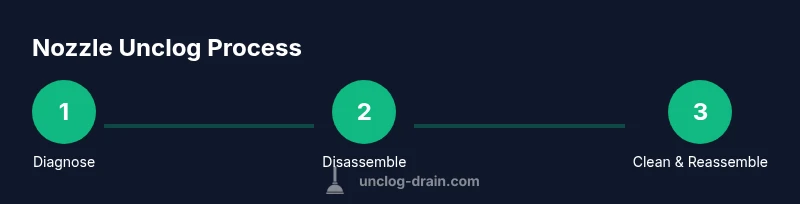
How to unclog FlashForge Adventurer 5M: A practical guide
Learn safe, effective steps to unclog the FlashForge Adventurer 5M nozzle. This educational guide covers diagnosis, disassembly, cleaning, reassembly, and maintenance to prevent future clogs.


If your FlashForge Adventurer 5M is experiencing a clogged nozzle, this guide from Unclog Drain shows how to safely unclog the printer without damaging components. You'll learn quick checks, safe disassembly steps, and best-practice cleaning methods. Expect practical diagnostics, a step-by-step cleaning workflow, and maintenance tips to prevent future clogs.
Understanding Nozzle Clogs on the FlashForge Adventurer 5M
Nozzle clogs are a common nuisance for desktop 3D printers. They occur when molten filament hardens inside the hot end or when contaminants in the filament create a partial or full blockage. With the FlashForge Adventurer 5M, clogs can be caused by moisture-laden filaments, using an incompatible filament diameter, or burnt residue from previous prints. Recognizing the signs—under-extrusion, inconsistent layer lines, or sudden stops in extrusion—helps direct you to the right remediation path. At Unclog Drain, we emphasize a methodical approach: inspect the filament quality, confirm you’re using the correct nozzle size, and plan a careful cleaning routine that minimizes risk to the hot end. By understanding the root causes, you can choose the least invasive method first and reserve aggressive techniques for stubborn clogs.
In many cases, a simple cold pull or a cleaning filament can clear the path without extensive disassembly. If the clog is deep in the nozzle or heater block, you may need to remove the nozzle for a thorough cleaning. This section lays the groundwork for safe, effective unclogging with practical checks you can perform before taking the printer apart.
Safety First: Power, Heat, and Handling
Safety is non-negotiable when dealing with hot ends. Before you touch anything, power down the printer and unplug it from the outlet. Allow the nozzle to cool to a safe handling temperature if it has been recently used. Wear eye protection and work in a well-ventilated area to avoid inhaling fumes from burnt plastic. Keep a clean workspace with labeled containers for screws and small parts, so you don’t lose critical components during disassembly. Remember: never force parts that resist; forcing a nozzle or heater block can cause irreparable damage. In this guide, we advocate a controlled, patient approach aligned with best practices from Unclog Drain research on DIY maintenance.
Quick Diagnostic Checks Before Disassembly
Start with a few low-risk checks to determine whether you’re facing a nozzle clog or an extrusion driver issue. Load a new filament to see if the extruder advances smoothly. Try manually turning the drive gear with the extruder disengaged to gauge resistance. Look for signs of heat creep, where the filament softens above the nozzle and begins to jam near the heat break. If you notice consistent filament grinding or skipping, the problem may be deeper than a simple clog. These checks guide whether you proceed with partial disassembly or replace components, helping you avoid unnecessary work.
Keep notes on extrusion pressure, temperature stability, and any unusual sounds. Documenting symptoms helps you select the most effective cleaning strategy and communicates clearly if you seek external help later.
Disassembly and Cleaning the Nozzle (Nozzle access required)
Disassembly should be performed with care and the right tools. Remove the exterior shell to access the hot end and the nozzle, using a compatible wrench or socket. While the printer’s interior designs vary, the general approach involves loosening the nozzle while the heater is cooled, extracting any hardened filament, and inspecting the heater block for clogs or residue. When removing the nozzle, keep a container ready for tiny parts and avoid baring the heater cartridge. After removing the nozzle, use a cleaning needle or partial cold pull to loosen debris from the bore. If needed, soak the nozzle in warm isopropyl alcohol to dissolve plastic residues, then re-fire with a cold pull to ensure the bore is clear. Finally, reinstall the nozzle securely and torque to manufacturer guidance to prevent leaks.
A meticulous clean reduces the risk of reoccurrence and prolongs nozzle life. If you’re unsure about torque specs, consult the printer’s user manual or refer to Unclog Drain’s recommended tolerances for your model.
Reassembly, Priming, and Test Printing
With the nozzle clean, reassemble the hot end assembly and reinsert any screws you removed. Reconnect the power, perform a hot-end heat-up, and purge a small amount of filament to prime the nozzle. Run a test print with a simple geometry to verify flow stability, then inspect for any irregular extrusion or under-extrusion patterns. If the print shows consistent lines and good layer adhesion, you’ve likely cleared the clog successfully. If issues persist, consider repeating the cleaning steps or replacing the nozzle. Regular calibration after a clog helps maintain print quality and prevents future failures.
Maintenance to Prevent Future Clogs
Prevention is the best cure. Store filament in a dry, sealed container to prevent moisture absorption, which can cause bubbling and poor extrusion. Use high-quality filament and avoid dusty surroundings that can introduce particles into the hot end. Periodically inspect the nozzle for wear, especially if you frequently print with abrasive materials. Keep the feeder gears clean, and perform routine calibrations for bed level and extrusion rate. A simple maintenance routine reduces downtime and extends the life of your FlashForge Adventurer 5M.
Tools & Materials
- Phillips screwdriver(Access panel screws on the Adventurer 5M exterior)
- Hex key/Allen wrench set(For nozzle and heater block screws)
- Nozzle wrench or dedicated nozzle removal tool(To loosen and tighten the nozzle safely)
- Cleaning needle or thin wire(Gently clears the nozzle bore)
- Isopropyl alcohol (70% or higher)(For cleaning the nozzle exterior and removing residues)
- Soft brush(For cleaning the exterior and heat sink fins)
- Heat-resistant gloves(Protect hands when handling hot components)
- Replacement nozzle (optional)(Keep on hand in case of wear or permanent damage)
Steps
Estimated time: 40-60 minutes
- 1
Power down and unplug the printer
Shut off the printer, unplug from the wall, and wait for all moving parts to stop. This reduces the risk of electric shock and avoids sudden extrusion during disassembly. If the printer has residual heat, wait a few minutes until the hot end cools to a safe handling temperature.
Tip: Document any immediate extrusion issues before starting to help diagnose later. - 2
Prepare your workspace and remove outer panels
Clear a clean workspace and lay out screws in labeled compartments. Use the screwdriver to carefully remove access panels so you can reach the hot end and nozzle without damaging wiring. Keep track of all fasteners for a smooth reassembly.
Tip: Take a quick photo of the internal layout before removal to reference during reassembly. - 3
Heat the nozzle to filament temperature (for softening)
If your filament is already loaded, preheat the hot end to the typical printing temperature for that material to soften any blockage. Do not leave the nozzle unattended while hot, and avoid touching hot surfaces. This step helps loosen hardened deposits inside the nozzle.
Tip: Only apply heat when you are ready to remove the nozzle; excess heat can damage components if left unattended. - 4
Loosen and remove the nozzle
Use the nozzle wrench to carefully loosen and remove the nozzle from the heater block. Keep a container handy for any loose filament fragments. Once removed, inspect the nozzle bore for visible obstructions or obvious wear.
Tip: Do not force the nozzle; if resistance is high, recheck alignment and ensure heat is fully cooled before reattempting. - 5
Clean the nozzle bore and perform a cold pull
With the nozzle out, use a cleaning needle to probe the bore. If residue remains, perform a cold pull with a high-temp filament according to your material to extract residual plastic. Wipe the nozzle exterior with isopropyl alcohol to remove film and contaminants.
Tip: When performing a cold pull, ensure the filament is loaded correctly and follow safe temperature guidelines for the material you’re using. - 6
Reinstall the nozzle and reseat the assembly
Reinstall the nozzle, tighten to the recommended torque, and reassemble the outer panels. Reconnect power and run a brief nozzle purge to prime the line. Observe for any filament skipping or air gaps in the extrusion.
Tip: Check for any leaks around the nozzle and ensure the hobbed gear grips filament smoothly. - 7
Test print and calibrate
Print a small calibration object to verify extrusion and bed leveling. If the print looks good, gradually test with more complex geometries. If problems persist, consider repeating the cleaning or replacing the nozzle.
Tip: Document calibration results for future reference and adjust slicer settings if needed.
Common Questions
What causes nozzle clogs on the FlashForge Adventurer 5M?
Clogs usually arise from degraded or moisture-laden filament, burnt residues, or debris in the hot end. Filament quality and storage conditions play a critical role in preventing clogs.
Clogs come from poor filament quality, moisture, or debris in the hot end.
Can I unclog without disassembling the printer?
In some cases you can perform cold pulls or use cleaning filaments to clear minor jams without full disassembly. Persistent clogs typically require partial or full disassembly and nozzle cleaning.
Sometimes you can clear a clog with cold pulls without taking everything apart, but stubborn jams usually need disassembly.
How long does nozzle cleaning take?
A thorough cleaning and reassembly typically takes about 40 to 60 minutes, depending on the complexity of the jam and your familiarity with the printer.
Most cleanings take 40 to 60 minutes.
Is it safe to use metal tools near the hot end?
Yes, but only with proper protection and care. Avoid prying with excessive force to prevent damaging the heater block or wiring.
Use metal tools carefully and protect the hot parts; don’t force-fit components.
When should I replace the nozzle?
Replace the nozzle if it’s visibly worn, corroded, or if clogs recur after thorough cleaning. A new nozzle can restore consistent extrusion.
Replace a worn or repeatedly clogged nozzle.
What safety steps should I follow during unclogging?
Power off, unplug, and let the hot end cool before touching. Wear eye protection and work in a ventilated area to manage fumes from melted plastic.
Turn it off, unplug, wait for cooling, and wear eye protection.
Watch Video
Key Points
- Identify clog symptoms early to minimize damage
- Use proper tools and safe disassembly practices
- Clean and inspect the nozzle thoroughly before reassembly
- Perform a test print and calibrate afterwards
- Establish a preventive maintenance routine