How to unclog a 3D printer nozzle: Step-by-Step Guide Today
Learn how to safely unclog a 3D printer nozzle with proven methods, tools, and maintenance tips to keep extrusion smooth for PLA, PETG, and other filaments.


This guide shows you how to safely unclog a 3D printer nozzle using proven, repeatable steps: heat, clean, pull, and test. You’ll need basic tools like a cleaning filament, a fine nozzle cleaning needle, and gloves. The methods work for common filaments like PLA and PETG, with clear safety notes and maintenance tips to prevent future clogs.
Understanding nozzle clogs: causes and symptoms
Nozzles clog for many reasons, and understanding the root causes helps you choose the right fix rather than guesswork. In most desktop 3D printers, clogs arise when filament partially melts and residue solidifies inside the nozzle, or when foreign material (dust, moisture, contaminated filament) migrates into the hot end. PLA tends to form a glassy ring if overheated, while PETG can leave sticky residue that behaves differently under heat. Symptoms include under-extrusion, inconsistent extrusion, visible misprints, or a grinding sound when the extruder tries to push filament. When you unclog 3d printer nozzle, you must separate the source from the symptom: note whether the problem occurs with a specific filament, after a long print, or after a filament change. Check the nozzle for partial blockages near the tip and inspect the heat break for heat creep, which can push melted plastic up into the cold zone. If you ignore these signals, the issue may recur after only a few prints, reducing surface finish quality. Regular maintenance reduces the frequency of clogs, saving time and preventing failed builds. This approach aligns with practical, DIY-friendly guidance from Unclog Drain on predictable maintenance and blockage prevention.
Safety and preparation: gather your tools and set up
Before you begin, power off and unplug the printer to prevent accidental movement or heat contact. Put on safety glasses and heat-resistant gloves; hot nozzle can cause serious burns even after cooling. Work in a well-ventilated area and place a silicone mat or disposable paper to catch debris or melted filament. Gather essential tools: a cleaning filament, a fine nozzle cleaning needle, a thin wire or dental pick, and needle-nose pliers. Keep isopropyl alcohol (70-90%), lint-free wipes, and a spare nozzle on hand. Finally, review your printer’s manual for nozzle-thread dimensions and safe temperatures, to avoid cross-threading or overtightening when reinstalling the nozzle. This prep work mirrors the safety-first approach recommended by industry guidance from Unclog Drain, ensuring you protect yourself while tackling nozzle issues.
Cleaning approaches: heat + cold pull + solvents
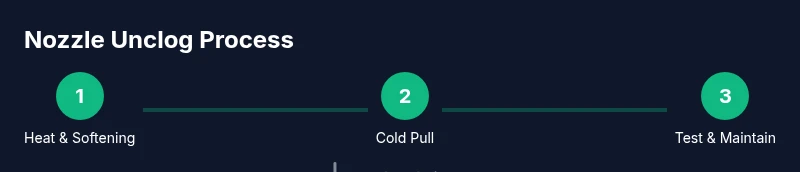
The most reliable unclog approach uses a combination of heat and careful pulling. Start by preheating the nozzle to the appropriate temperature for your filament (PLA commonly around 190–210°C; PETG around 230–250°C), then extrude a small amount to flush the path. If a partial blockage remains, load a cleaning filament designed for nozzle maintenance and perform a hot pull: push the filament into the hot end while the nozzle is at temperature, then pull it out steadily as it cools. Repeat 2–3 times. Next, perform a cold pull: lower the temperature to near 90–110°C for PLA, insert the cleaning filament, and pull firmly to remove embedded debris. Wipe away residue with isopropyl alcohol and a lint-free pad. Solvent cleaning is generally avoided for home printers unless you’re experienced, because solvents can degrade nozzle materials and pose safety hazards. For stubborn clogs, mechanical removal (next section) often works best, without resorting to harsh chemicals. This section reinforces a practical, methodical approach to unclogging that aligns with DIY best practices highlighted by Unclog Drain.
Mechanical techniques: needles, wires, and careful scrapes
If thermal methods don’t fully clear the opening, use a slender tool to physically dislodge the blockage. With the nozzle cooled and the hot end reassembled, gently insert a fine cleaning needle or a thin stainless-steel wire through the nozzle opening to break up the residue. Do not twist aggressively; apply small, controlled movements to avoid damaging the nozzle seat. If you encounter a stubborn lump, pause and reheat slightly before attempting another probe. After clearing the opening, wipe the exterior and ensure there’s no filament residue in the heat sink area. If you removed the nozzle, reinsert it with a light touch and tighten per your printer’s specification. Inspect for cross-threading and ensure the nozzle is seated evenly before testing extrusion. This hands-on section is designed to give you practical, repeatable actions while staying within safe handling limits.
Post-clean test and maintenance tips
With the nozzle reinstalled, run a quick nozzle check: a short extrusion of filament to verify smooth flow. If extrusion remains inconsistent, relevel the bed and re-calibrate the nozzle height. Run a small calibration cube to verify layer adhesion and surface quality. After a successful test print, consider adopting a simple maintenance routine: keep filament in dry storage, check the nozzle wear over time, and replace the nozzle when extrusion becomes irregular. Regular cleaning and careful handling extend nozzle life and improve print quality. This final block ties the procedure to ongoing maintenance habits that reduce future downtime.
Tools & Materials
- Safety glasses(ANSI Z87.1 or equivalent)
- Heat-resistant gloves(Nitrile or neoprene recommended)
- Cleaning filament(Special filament designed for nozzle cleaning)
- Nozzle cleaning needle(Fine gauge stainless steel)
- Thin wire or dental pick(Gentle probing tool)
- Isopropyl alcohol (70-90%)(For residue removal)
- Lint-free wipes(Clean surfaces and nozzle exterior)
- Replacement nozzle(Optional spare in case of wear)
Steps
Estimated time: 45-90 minutes
- 1
Power down and prepare
Power off and unplug the printer. Allow the hot end to cool to a safe handling temperature, but keep hazards in mind if you recently printed. Clear the workspace and gather tools to prevent interruptions during the fix.
Tip: Unplug before touching moving parts; heat can cause burns. - 2
Preheat nozzle to filament temperature
Set the nozzle to the printing temperature for your filament (e.g., PLA around 190–210°C; PETG around 230–250°C). Heating softens residue and makes clog removal easier. Have a small amount of filament ready to prime the extruder if needed.
Tip: Use manufacturer-recommended temps and never exceed the nozzle's max temperature. - 3
Remove the nozzle and inspect
If the printer design allows, remove the nozzle and inspect the opening for visible jams. Look for burnt material or blobs near the tip and check threads for cross-threading before reinstallation.
Tip: Handle hot components with care; avoid twisting the nozzle during removal. - 4
Hot pull with cleaning filament
Load cleaning filament and push it into the hot end while extruding to pull debris out of the nozzle. Allow it to cool slightly and repeat 2–3 times to loosen stubborn fragments.
Tip: Keep the filament moving slowly to avoid pushing debris deeper. - 5
Cold pull to capture debris
Lower the temperature to near 90–110°C for PLA, insert the cleaning filament, and pull firmly to remove embedded debris from the nozzle path. This method captures residues that hot pulls may miss.
Tip: Make a steady, confident pull for best debris capture. - 6
Clean exterior and reassemble
Wipe the exterior with alcohol, reinsert the nozzle, and tighten to the printer manufacturer's specs. Avoid overtightening to prevent damaging threads.
Tip: A light lubrication if recommended by your manual can aid reassembly. - 7
Test print and adjust
Recalibrate the nozzle height and perform a small test print to verify extrusion. If under-extrusion persists, re-level the bed and inspect the filament quality.
Tip: Run a quick test at a low layer height to quickly verify flow. - 8
Prevent future clogs
Store filament properly to avoid moisture, replace worn nozzles as needed, and maintain a simple cleaning routine for your printer.
Tip: Use high-quality filament and consider a routine nozzle inspection schedule.
Common Questions
What is the most common cause of nozzle clogs?
Partial melting and residue buildup from filament are the typical culprits. Heat creep can push material into the hot end, causing a blockage.
Clogs usually come from filament residue and heat creep—let's fix that.
Can I unclog a nozzle without removing it?
Yes. Hot pulls and cleaning filaments can clear many clogs without removing the nozzle. If resistance remains, remove and inspect.
Yes, you can often unclog without removing the nozzle.
Is solvent cleaning safe for all nozzles?
Solvent cleaning is generally not recommended for most home setups because solvents can degrade nozzle materials and pose safety hazards.
Solvent cleaning isn't usually recommended for home use.
How often should I clean the nozzle?
Clean when you notice printing defects or after switching filament types; establish a maintenance cadence for frequent users.
Clean when you see defects or after switching filament.
When should I replace the nozzle?
If clogs recur after thorough cleaning or the nozzle shows wear or deformation, replace with a compatible nozzle.
If clogging recurs or there is wear, replace the nozzle.
Can water-soluble residue cause clogs?
Yes, residue from some filaments can Solidify and block the nozzle; regular maintenance helps prevent buildup.
Yes, some filaments leave residues that can clog the nozzle.
Watch Video
Key Points
- Identify the exact cause of the clog before acting.
- Use heat, cleaning filament, and cold pulls in sequence.
- Test with small prints to confirm extrusion after cleaning.
- Prevent future clogs with proper storage and nozzle maintenance.