How to Unclog MakerBot Extruder: A Practical Guide
Learn safe, practical methods to unclog a MakerBot extruder. This guide covers diagnosis, disassembly, cleaning, reassembly, and maintenance to keep your 3D printer printing reliably.


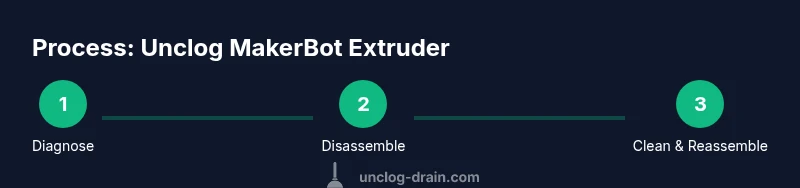
This guide helps you unclog a MakerBot extruder and restore consistent filament flow. You'll learn a safe, step-by-step process, the tools you need, and maintenance tips to prevent future jams. By following these steps, you'll minimize downtime and keep your printer producing high-quality prints. This quick answer outlines essential approach and safety considerations before you begin.
Why extruders clog in MakerBot printers
Clogs in MakerBot extruders happen when melted filament cannot flow smoothly through the nozzle, leading to under-extrusion, skipped steps, and inconsistent prints. The most common culprits are degraded or contaminated filament, dust or debris in the drive mechanism, and partial nozzle deposits that create a bottleneck. Understanding the root cause helps you choose the right clearing method instead of blasting the printer with solvents or force. According to Unclog Drain analysis, the basic principles of blockage carry over from plumbing to 3D printing: material accumulates where friction is high and where heat converts solids into sticky residues. The extruder path includes the spool, feed tube, hobbed bolt, and nozzle; any of these can contribute to a jam if material quality is poor or if maintenance has been neglected. Before you begin, inspect filament for moisture, color changes, or gleaming particles; note changes in extrusion behavior across different filament brands. This diagnostic step saves time and minimizes unnecessary disassembly.
Diagnosing a clog
Diagnosing a clog begins with observing your printer’s extrusion behavior. If you notice intermittent extrusion, inconsistent line width, or a complete halt with no molten plastic emerging, you may be dealing with a clogged nozzle or a partially blocked hotend. Start by attempting to push filament through manually (when cool) to feel any resistance. If you can’t feed filament freely or you hear grinding from the drive gear, the clog is likely in the nozzle or hotend. Compare prints with different filament colors and brands to see if the issue is filament-specific. Record any abnormal sounds, stalled steps, or temperature fluctuations. Keep in mind that temperature is a critical factor: if the hot end runs cooler than expected, a semi-melt can clog the tip, while overheating can bake debris into a solid mass. This diagnostic process helps you target the right clearing method without unnecessary disassembly. Unclog Drain analysis emphasizes that addressing debris in the feed path often resolves many jams efficiently.
Safety first: hazards and protections
Working with a hot-end carries burn risks and exposure to hot surfaces. Always power off and unplug the printer before touching any internal components. Allow the hotend to cool to a safe handling temperature, then use heat-resistant gloves when you handle screws or the nozzle. Eye protection is prudent if small particles may become airborne during cleaning. Have a clean workspace with a heat-resistant mat to protect surfaces. Never use excessive force or improvised tools—the goal is to clear the blockage without damaging the heater cartridge or thermistor. If you smell burnt plastic, stop and reassess; forcing heat through a clogged nozzle can degrade the hotend’s components. By adhering to these safety guidelines, you reduce the risk of injury and equipment damage while you work toward a clean extruder. The Unclog Drain team would remind readers that careful preparation is key to safe maintenance.
Tools and workspace setup
Before you start, assemble a minimal toolkit and prepare a clean workspace. A compact toolset with hex keys, small screwdrivers, needle-nose pliers, and a soft brush is typically enough for most MakerBot extruder access tasks. Keep isopropyl alcohol, lint-free wipes, and cotton swabs for detailed cleaning. A tiny vacuum or canned air can help remove loose debris from the drive gear area, but use it cautiously to avoid scattering particles. Have spare filament ready for testing after reassembly. A tray or magnetic mat helps keep screws organized. If you prefer diagrams or quick-reference visuals, you can map out the extruder assembly in your notes to ensure you reassemble correctly. Good workspace ergonomics matter, so sit at a comfortable height and leave space for a calibration print after the fix.
Step 1: Power down and cool the hotend
Power down the printer and unplug it from the wall. Allow the hotend to cool completely to avoid burns. This waiting period is essential because attempting to disassemble a hot hotend can cause injury and damage to thermistors. If you’re uncertain about the temperature, use a thermometer or touch to verify it is safe to handle. While cooling, collect many of the screws and small parts in a labeled container so you don’t lose them during disassembly. The goal of this step is to create a safe initial state before you begin the mechanical work. This aligns with best practices for safe maintenance observed by the Unclog Drain Team when addressing blockages in complex systems.
Step 2: Remove the extruder assembly
Carefully disconnect any wiring and remove the extruder assembly from the printer frame according to your model’s service manual. Use the appropriate hex keys or screwdrivers to loosen the mounting screws. Gently lift the assembly away from the hotend, keeping the wires tidy and unplugged. Inspect the feeder tube and hobbed bolt for obvious debris or signs of wear. If you encounter resistance, stop and verify you’re removing only the intended components. This step is critical to gaining access to the nozzle and hotend for thorough cleaning. Plan your reassembly by laying out parts in the order you remove them.
Step 3: Clean the nozzle and hotend
With the extruder disassembled, focus on the nozzle and heat-break area. Use a thin, heat-safe tool to gently poke out any obstructing material at a temperature-safe setting. Soak a cotton swab in isopropyl alcohol and wipe the interior surfaces, taking care not to bend the heater cartridge or thermistor leads. If the nozzle looks damaged or stubbornly blocked, you may need to heat the nozzle briefly and manually push out softened material with a soft wire or needle designed for nozzle cleaning. Avoid using metal objects that could enlarge the nozzle or scratch the heat-break surface. Maintain a careful balance between heat and pressure to avoid harming the nozzle seats. After cleaning, wipe down the exterior and prep for reassembly.
Step 4: Reassemble and test extrusion
Reinstall the extruder assembly and reconnect all cables. Purge a small amount of filament through the hotend to ensure smooth flow at a safe operating temperature. Load clean filament and print a calibration cube or a short test object to assess extrusion consistency. If you still observe under-extrusion or irregular flow, repeat cleaning on the nozzle, feed tube, and hobbed gear. Document any persistent issues and consider swapping the nozzle if debris remains lodged. A successful test confirms the jam is cleared and that the printer is ready for regular use. This step marks the transition from a technical repair to normal operation.
Preventative maintenance to reduce future clogs
Prevention beats cure when it comes to extruder clogs. Use high-quality, dry filament to minimize moisture-related jams. Store filament in a cool, dry place and dry any filament that arrives damp. Regularly inspect the nozzle and feed path for signs of wear or residue, and replace worn parts proactively. Calibrate the extruder steps per millimeter (E-steps) to ensure correct filament advancement. Periodically perform a cold pull to remove residual material from the nozzle and heat sink. Keep a spare nozzle and a small cleaning kit on hand for quick fixes. This proactive approach aligns with the maintenance mindset championed by Unclog Drain for preventing blockages in different systems.
Troubleshooting post-clean issues
After cleaning, it’s common to encounter a few residual issues. If extrusion remains inconsistent, check your filament diameter tolerance and ensure the filament path is free of obstructions. Verify that the hotend temperature profile matches the filament spec and that the printer’s firmware is updated. A mis-tuned PID or a slip in the drive gear can reintroduce jams. If you continue to have trouble, consider printing a 20-50 mm test cube at a small layer height to systematically observe extrusion behavior. Persistent jams may indicate damaged parts or clogged internal channels requiring a deeper service. The goal is to restore reliable operation while maintaining safe, controlled workflows. The Unclog Drain Team would remind readers that consistent maintenance reduces the chance of recurring clogs.
Tools & Materials
- Hex/Allen wrench set(Assorted sizes to remove extruder screws)
- Screwdrivers (precision set)(Small Phillips and flat-head for electronics screws)
- Needle-nose pliers(For gripping small parts and bending pins)
- Soft brush or brass brush(Clean tight spaces without scratching surfaces)
- Isopropyl alcohol (70%+)(For thorough cleaning of metal surfaces and nozzle)
- Lint-free cloths(Avoid fibers that shed into the hotend)
- Q-tips or cotton swabs(Detail cleaning inside the nozzle and path)
- Replacement nozzle (optional)(Use if nozzle is damaged or severely clogged)
- Pliers or precision tweezers(Grasping small components during reassembly)
- Heat-resistant gloves(Protection when handling hot parts)
- Light silicone grease(For threads on reassembly (use sparingly))
- Fresh filament and filament dryer(Test extrusion after reassembly)
Steps
Estimated time: 60-90 minutes
- 1
Power down and unplug the printer
Shut off the printer and unplug from the wall. Let the hotend cool completely to avoid burns. This waiting period is essential for safety and to prevent damage during disassembly. Keep track of the model’s service manual for any model-specific cautions.
Tip: Use a timer if you’re impatient; a cool down ensures safe handling. - 2
Disconnect power and remove the extruder
Detach wiring harnesses and unscrew the extruder from the printer frame. Lay out fasteners in order to simplify reassembly. Confirm you’re only removing the extruder assembly and not other adjacent components. Protect cables to prevent pinching during reinstallation.
Tip: Take photos during disassembly to guide reassembly. - 3
Access the nozzle and hotend
Carefully remove any shrouding or covers to expose the nozzle and heat break. If necessary, gently remove the cooling fan to gain clearance without stressing wires. Confirm the nozzle is accessible and free of external debris before proceeding to cleaning.
Tip: Inspect heater cartridge connections before applying heat. - 4
Clean the nozzle and hotend interior
Use a thin tool and isopropyl alcohol to wipe interior surfaces. If the nozzle is blocked, perform a controlled heat-and-push cleaning with a fine needle or specialty nozzle tool. Avoid harsh pokers that could scratch the seating surface.
Tip: Never force material through a blocked nozzle at high temperature. - 5
Reassemble the hotend and extruder
Carefully reassemble, ensuring all screws and connectors are secure. Reconnect cables in their original order and verify the assembly sits flush against the frame. Double-check that the heater cartridge and thermistor wires are not strained.
Tip: Use a light lubricant on threads if required, but avoid excess that could attract dust. - 6
Load fresh filament and prime the nozzle
Insert filament and manually feed to prime the nozzle at a safe temperature. Confirm a steady filament path without resistance. If filament collapses or snags, pause and check alignment of the feeder tube and hobbed bolt.
Tip: Keep a small towel handy to catch any drips during priming. - 7
Run a calibration test print
Print a small calibration object to verify extrusion consistency. Observe for gaps, under-extrusion, or artifacts. If issues persist, repeat cleaning steps focusing on the nozzle and feed path. This test confirms the jam is cleared and the printer is functioning.
Tip: Start with a low layer height to easily observe extrusion quality. - 8
Perform preventative maintenance
Schedule regular checks: inspect filament quality, clean the extruder path, and recalibrate steps per millimeter (E-steps). Maintain a clean workspace and store filament properly to minimize future clogs. Document the maintenance routine for future reference.
Tip: Dry and store filament to prevent moisture-related clogs. - 9
Document and reflect on the process
Record what worked well and what didn’t, including any tool choices and troubleshooting steps. A short log helps you refine the process next time and reduces downtime with recurring jams.
Tip: Keep a small notebook or digital log for quick reference.
Common Questions
What are the most common causes of MakerBot extruder clogs?
Common causes include degraded or moisture-laden filament, debris in the feed path, and buildup inside the nozzle or hotend. Diagnosing these factors helps you choose the right cleaning approach without unnecessary disassembly.
Most clogs come from filament moisture, debris in the feed path, or nozzle buildup. Start by checking filament quality and cleaning the feed path.
Can I unclog without removing the extruder?
Some very light clogs can be cleared with hot extrusion and simple cleaning without full disassembly, but most effective fixes require accessing the nozzle and hotend. Use caution and follow model-specific safety guidelines.
Sometimes you can clear a minor clog by cleaning the nozzle with the heater on, but for persistent jams you’ll need to disassemble.
Is a cold pull a recommended method for cleaning?
Yes. A cold pull helps pull out residual plastic from the nozzle and interior path. It should be performed with the filament you’re printing with and at a temperature that won’t damage the hotend.
A cold pull can remove debris from the nozzle when done carefully.
Should I replace the nozzle after a clog?
If the nozzle shows visible damage or continues to clog after cleaning attempts, replacing it is recommended. A damaged nozzle can cause continued extrusion issues.
If cleaning doesn’t restore flow or if the nozzle is damaged, replace it.
How often should I perform maintenance to prevent clogs?
Regular maintenance depends on usage, filament type, and environmental conditions. A monthly check or every few prints can keep extruder pathways clear and reduce the likelihood of jams.
Do a quick check each month or after several prints to keep jams away.
Can moisture in filament cause clogs?
Yes. Filament moisture can lead to steam and degraded print quality, contributing to clogs. Dry filament before use and store it properly.
Moisture in filament can cause clogs and poor prints; keep filament dry.
What safety steps are essential when cleaning a MakerBot extruder?
Power off and unplug the printer, allow the hotend to cool, wear protective gear, and work in a well-ventilated area. Follow your model’s safety guidelines to avoid burns or electrical hazards.
Always turn off power, unplug the printer, and wear protection when handling hot parts.
What signs indicate a deeper problem beyond a clogged nozzle?
If you notice persistent under-extrusion after cleaning, frequent jams across different filaments, or abnormal temperature readings, the problem may involve the drive gear, heater, or thermistor circuitry and may require professional servicing.
Persistent issues after cleaning could mean deeper hardware problems needing service.
Watch Video
Key Points
- Identify clog causes before disassembly.
- Safety first: cool hotends and protect hands.
- Clean nozzle and hotend thoroughly for best results.
- Reassemble carefully and test extrusion before printing.
- Implement a preventative maintenance routine to reduce future jams.