How to Unclog an Ink Cartridge: A DIY Printer Care Guide
Learn safe, proven steps to unclog ink cartridges, restore print quality, and prevent future clogs with at-home methods, routine maintenance, and expert tips for common printer models.


By the end of this guide you will learn how to unclog an ink cartridge and restore print quality. You’ll safety-check your printer, choose between cleaning cycles and manual nozzle cleaning, and use gentle rinsing with distilled water. Follow the step-by-step process, and know when to replace the cartridge. This approach minimizes waste and preserves printer health.
Understanding Ink Cartridge Clogs: Why They Happen
Ink cartridges clog for several reasons, from dried pigment around the nozzle to storage-induced settling. In practice, most clogs begin when residual ink dries at the printhead, forming bridges that hinder flow. According to Unclog Drain, even routine usage without regular maintenance can let minor blockages grow into stubborn clogs. This guide explains the science behind printhead channels and how different ink formulations affect flow, including pigment-based versus dye inks. Environmental factors like storage temperature and air exposure also influence clog risk. Early recognition of warning signs—faint lines, missing colors, banding, or uneven saturation—lets you intervene before the clog worsens. The goal is to choose the right approach: run a manufacturer cleaning cycle, perform a manual nozzle cleaning, or replace the cartridge when necessary. A solid diagnostic foundation saves time, reduces waste, and keeps printers producing crisp text and vibrant images.
Safety First: Protect Yourself and Your Printer
Safety is the foundation of any ink cartridge cleanup. Before you touch cartridges, unplug the printer and allow it to cool. Work on a clean, lint-free surface and wear nitrile gloves to avoid staining your hands. Keep ink away from eyes and skin, and avoid spraying solvents directly onto interior printer parts. Never use bleach, pastes, or harsh chemical cleaners around ink paths, seals, or circuitry, as they can degrade materials or void warranties. If you’re unsure about a specific ink formulation or printer model, consult the user manual or manufacturer support site first. Safety first isn’t just about avoiding mess—it protects your device’s longevity too.
Key Causes You Need to Diagnose
Common causes of clogged cartridges include dried, caked ink around the nozzle, congealed pigment in the printhead channels, and cartridges that have been stored for long periods without use. Refilling or replacing cartridges without proper priming can push air into channels, creating air bubbles that disrupt flow. Some inks settle unevenly in color tanks, leaving scattered islands of pigment that dry and block passages. If you recently switched ink brands or colors, the new formula may interact differently with the printhead. A thorough assessment helps you decide whether to run a cleaning cycle, manually clean the nozzle area, or replace the cartridge altogether.
Quick Checks Before Cleaning
Start with basic printer checks to avoid unnecessary work. Print a diagnostic page from the printer menu to identify which colors fail or blur. Check cartridge seating—loose contact can appear as a clog. Confirm you are using genuine or manufacturer-recommended cartridges for your model, as incompatible parts may fail to align and print. If the printer offers a self-cleaning cycle, run it once or twice, then inspect results. Only proceed to manual cleaning if the diagnostic page shows persistent issues in specific color channels. These checks set a baseline so you know whether cleaning is sufficient or a replacement is warranted.
Cleaning the Print Head: External Head Cleaning Methods
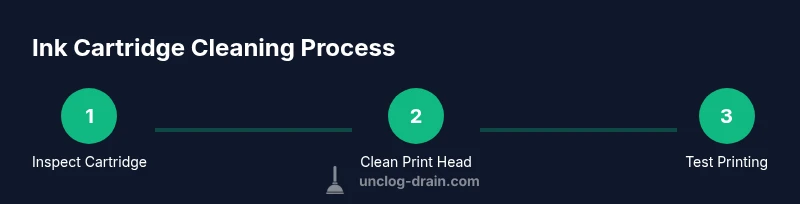
External head cleaning involves careful blotting around the nozzle area with a damp, lint-free cloth. Avoid aggressive scrubbing that could damage delicate plating or contacts. Do not spray liquid directly onto the print head or into the printer’s interior. If your printer supports a built-in cleaning cycle, use it as a first option; this method re-inks the paths through internal channels and can dissolve minor blockages. When performing external cleaning, let any moisture evaporate fully before reinstalling cartridges. This prevents short circuits or corrosion on electronic components and ensures the print head surfaces are dry for optimal contact.
Cleaning the Cartridge Nozzle with Distilled Water
If the clog persists after a cleaning cycle, you can gently rinse the nozzle area with distilled water. Remove the cartridge and place the nozzle end on a damp, lint-free cloth or in a shallow dish of distilled water for a brief soak (no longer than a few minutes). Blot gently to transfer moisture away from contacts and allow the cartridge to air-dry on a clean surface. Do not submerge the entire cartridge or allow liquid to contact the electronic contacts. Reinsert once completely dry and run the printer’s test page or cleaning cycle again to verify improvement.
When to Replace Cartridges vs Cleaning
Not every clog responds to cleaning. If multiple cleaning cycles fail to restore color balance, or if the nozzle remains visibly blocked after repeated soaking and blotting, replacement is usually the most cost-effective option. Some printers also detect failed nozzles and will not print correctly after cleaning attempts. In these cases, consider keeping a spare cartridge in good condition and following manufacturer guidelines for priming new cartridges. Replacement cartridges, when needed, often yield better color reproduction and longer-term reliability than aggressive cleaning attempts.
Maintenance to Prevent Future Clogs
Prevention beats cleanup. Establish a routine that includes using your printer at regular intervals, even if you print only a few pages a week. Run a diagnostic and cleaning cycle at least once a month for printers that sit idle for long periods. Store cartridges in their original packaging or upright as recommended by the manufacturer to prevent pigment settling. Use only approved ink types and colors for your model and avoid mixing brands. Proper storage, regular use, and careful handling dramatically reduce future clog risk and keep print quality high.
Troubleshooting and Final Tips
If print quality remains inconsistent, double-check paper type and print settings, as poor media choice can mimic clog symptoms. Avoid aggressive cleaning cycles that can wear out printhead components; balance cleaning pressure with the model’s guidelines. If you’re unsure about results, contact the printer maker support line or consult a local service professional. Document any changes you make to your cartridge seating, cleaning frequency, and color balance; this record helps you troubleshoot systematically next time.
Tools & Materials
- Lint-free microfiber cloth(For blotting and gentle cleaning of printhead nozzles)
- Distilled water(Room-temperature; use for rinsing nozzle areas, never tap water with minerals)
- Soft brush (artist brush)(Loosen dried ink around nozzle surfaces without scratching)
- Gloves (nitrile)(Protect hands and prevent ink transfer)
- Small bowls or cups(Contain cleaning solution and used wipes)
- Paper towels or lint-free wipes(Pat dry and absorb excess moisture)
- Printer manual or service guide(Consult for model-specific cautions and cleaning cycles)
- Replacement ink cartridge (optional)(Have on hand in case a replacement is needed)
Steps
Estimated time: 30-60 minutes
- 1
Gather supplies
Lay out all tools and materials on a clean, dry surface. Check your printer model’s manual to confirm safety instructions and recommended cleaning cycles. Having everything ready reduces interruptions and helps you stay organized.
Tip: Group items by task (cleaning, drying, reinstallation) to minimize cross-contamination. - 2
Power down and remove ink cartridge
Unplug the printer and wait at least a minute for internal power to drain. Open the printer access panel and carefully remove the cartridge from its slot, holding it by its edges to avoid touching the nozzle.
Tip: Place the cartridge on a protective surface or lint-free cloth to avoid staining other components. - 3
Inspect the cartridge and print head
Check for visible ink buildup around the nozzle and on contact surfaces. Look for cracks or damage. If you notice damage, replacing the cartridge may be necessary rather than attempting a risky cleaning.
Tip: Take a quick photo of the cartridge setup to reference proper reinstallation orientation. - 4
Clean the exterior and nozzle area
Moisten a lint-free cloth with distilled water and wipe the nozzle area gently. Avoid soaking contacts or submerging the cartridge. Let any residual moisture evaporate completely before proceeding.
Tip: Do not use abrasive materials that could scratch the nozzle or contacts. - 5
Rinse the nozzle region with distilled water
If needed, place the nozzle onto a damp cloth or dip the nozzle end briefly in distilled water, then blot dry with a clean cloth. Do not submerge the cartridge or apply pressure to the nozzle.
Tip: Limit soaking time to a few minutes to prevent ink dilution or damage. - 6
Dry and reinstall
Allow the cartridge to air-dry completely in a clean area before reinserting it. Reinstall the cartridge, reseat firmly, and run the printer’s built-in cleaning or diagnostic page to test print quality.
Tip: If the printer refuses to print after cleaning, power the unit off and back on to reset the cleaning sequence.
Common Questions
What causes ink cartridges to clog?
Clogs are usually caused by dried ink around the nozzle, pigment buildup, or air pockets from improper refilling. Diagnosing the root cause helps choose the right cleaning method and reduces repeat issues.
Clogs come from dried ink around the nozzle, pigment buildup, or air pockets after refilling. Identifying the cause helps you clean correctly and prevent repeats.
Can you unclog an ink cartridge without removing it from the printer?
Some printers support internal cleaning cycles that can clear minor clogs without cartridge removal. If the cycle fails, you may need to remove the cartridge for manual cleaning.
Some printers have built-in cleaning cycles you can run without removing the cartridge. If that doesn’t help, you may need to remove it for manual cleaning.
Is it safe to use alcohol to clean the print head?
Alcohol can discolor or damage some printhead seals. Use it only if the manufacturer approves it for your model, and never apply directly to electronic contacts.
Alcohol can harm some printhead seals, so only use it if your manual approves it, and don’t apply to electronic contacts.
How long should I wait after cleaning before printing again?
Let the nozzle and any cleaning residues dry completely, usually 5-15 minutes. If you used distilled water, ensure there is no residual moisture before reinsertion.
Wait about 5 to 15 minutes after cleaning for everything to dry before printing again.
When should I replace a cartridge instead of cleaning?
If multiple cleaning cycles don’t restore nozzle function or color accuracy, replacement is typically the most cost-effective option. Persistent clogs may indicate internal damage.
If cleaning doesn’t fix the issue after several attempts, replace the cartridge.
Does switching ink brands affect clog risk?
Using incompatible brands or mixed inks can increase the risk of clogs. Always follow the printer manufacturer’s recommendations and avoid mixing brands unless explicitly supported.
Using the wrong brand or mixing inks can raise clog risk. Stick to what your printer brand recommends.
Watch Video
Key Points
- Diagnose clog type before cleaning.
- Use distilled water for rinsing; avoid harsh solvents.
- Never submerge electronics; allow drying before reinstallation.
- Run built-in cleaning cycles after reinstallation.
- Replace cartridges if cleaning fails to restore print quality.